
You added animation to make your site feel premium, and instead it feels broken. The scroll reveal stutters, the hero element jerks into place, and on a phone the whole thing chugs. Laggy animation is worse than no animation at all, because a static site looks intentional while a janky one looks like something’s wrong with your website.
The frustrating part is that the cause is rarely obvious. The animation looks fine in your builder, then stutters on the live site. It’s smooth on your laptop, then choppy on a client’s phone.
This guide fixes that properly. You’ll learn the real, specific reasons of laggy website animations, what’s happening technically behind each one, and exactly how to fix it. Whether the problem is which properties you’re animating, how much is loading, or how your device is handling it, by the end you’ll be able to diagnose the lag and get your motion back to a smooth 60fps.
Quick Answer
Website animations lag mainly because they animate the wrong properties. Animating width, height, top, left, or margin forces the browser to recalculate layout every frame, which causes stuttering.
The fix is to animate transform and opacity instead, which are GPU-accelerated and run smoothly at 60fps.
Other common causes are too many animations running at once, heavy assets, main-thread overload, and underpowered mobile devices.
Why Animation Lags: The One Concept That Explains Most of It
When a browser displays a page, it aims to redraw the screen 60 times per second, that’s 60 frames per second (60fps), and it’s what “smooth” means. That gives the browser roughly 16 milliseconds to prepare each frame. If preparing a frame takes longer than that, the browser drops frames, and dropped frames are exactly what you see as stutter or jank.
So the real question behind all animation lag is: what’s making each frame take too long to prepare? Most of the time, the answer is that the animation is asking the browser to do expensive work on every single frame. The most expensive work is recalculating the page’s layout, figuring out where everything sits, which the browser is forced to do when you animate properties that affect size or position in the document flow.
The opposite of expensive work is animation the browser can hand off to the GPU (the graphics chip), which is built for exactly this. Certain properties, transform and opacity, can be animated by the GPU without touching layout at all, so they stay smooth even when everything else struggles. Almost every fix in this guide is a version of the same principle: stop asking the browser to do expensive per-frame work, and let the GPU do the cheap kind instead.
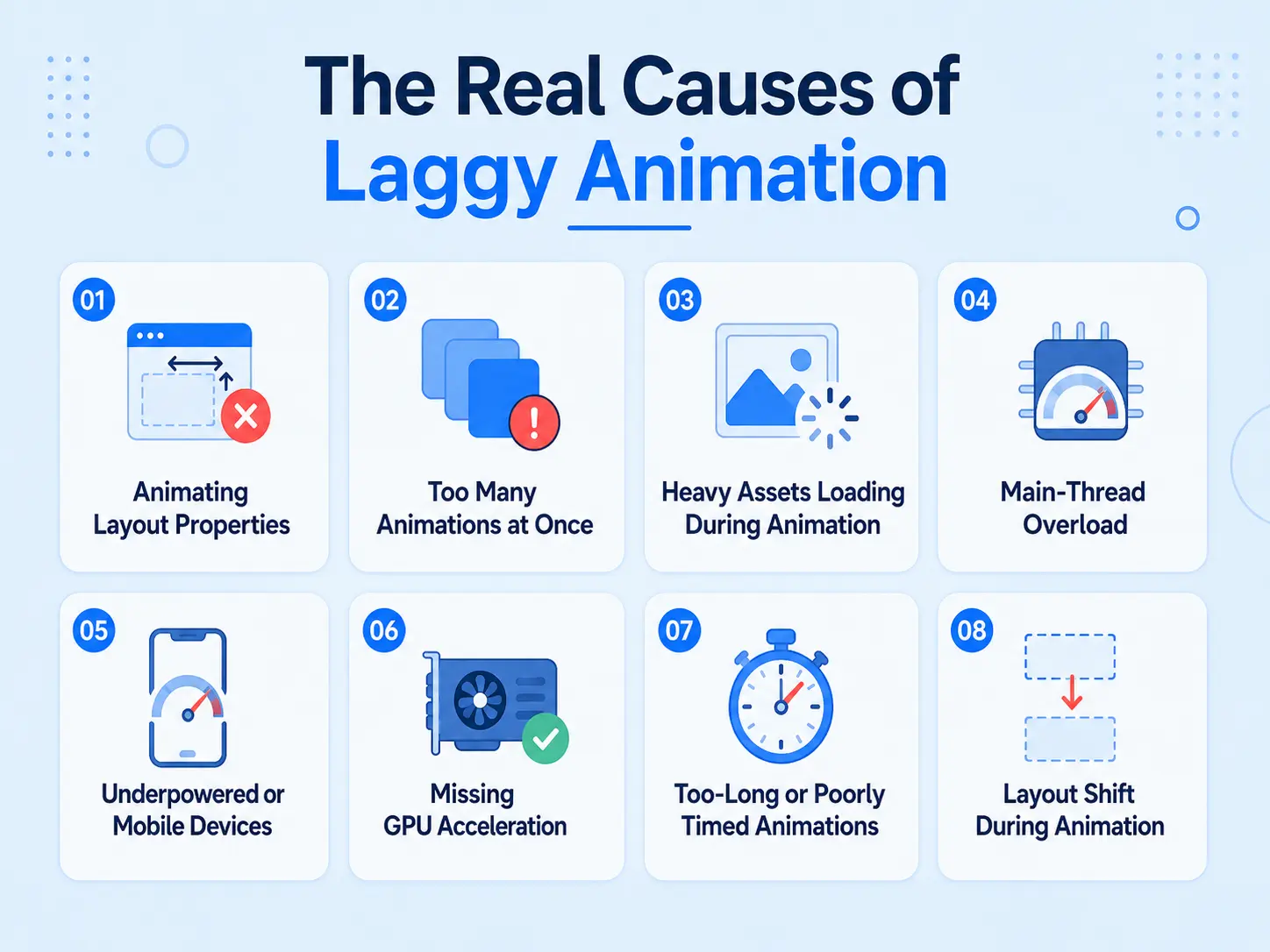
The Real Causes of Laggy Animation
Here are the specific reasons animation stutters, roughly in order of how commonly they’re the culprit.
Animating Layout Properties
This is the number one cause. Animating width, height, top, left, margin, or padding forces the browser to recalculate the layout of the page on every frame (called reflow). That’s the expensive work that blows past the 16ms budget and causes jank. It’s the single most common reason a “simple” animation stutters.
Too Many Animations at Once
Even cheap animations add up. If dozens of elements animate simultaneously, especially during scroll, the browser has too much to prepare per frame. This often shows up as scroll animations that stutter specifically when several sections animate together.
Heavy Assets Loading During Animation
Large images, uncompressed video, or heavy Lottie files loading while an animation plays steal resources and bandwidth from rendering. The animation competes with the download and loses, producing stutter right as the page is doing the most work.
Main-Thread Overload
The browser’s main thread handles JavaScript, layout, and user interaction. If heavy scripts (analytics, third-party embeds, poorly built plugins) are busy on the main thread, there’s no room left to render animation smoothly. The animation itself may be fine, its neighbors are the problem.
Underpowered or Mobile Devices
An animation that’s smooth on a powerful laptop can lag on a mid-range phone, which has far less processing and GPU power. Since a large share of traffic is mobile, “it’s smooth on my machine” is not the same as “it’s smooth.”
Missing GPU Acceleration
Sometimes an animation isn’t being handed to the GPU when it could be, so it runs on the CPU/main thread unnecessarily. Using compositor-friendly properties (transform, opacity) is what lets the browser offload the work.
Too-Long or Poorly Timed Animations
Long, laggy website animations give more opportunity for visible stutter and make any dropped frame more noticeable. Slow motion also feels laggy to users even when the frame rate is technically fine, perceived lag counts too.
Layout Shift During Animation
If an animated element resizes or moves other content around as it plays, the browser recalculates layout repeatedly, which both causes jank and hurts your Core Web Vitals at the same time.
Causes and Fixes at a Glance
| Cause | What You See | Fix |
| Animating layout properties | General stutter on most effects | Animate transform and opacity instead |
| Too many simultaneous animations | Jank during scroll / busy sections | Trigger on view, limit concurrency |
| Heavy assets during animation | Stutter as page loads/plays | Compress and lazy-load assets |
| Main-thread overload | Animation janky despite being simple | Audit heavy scripts/plugins |
| Underpowered mobile device | Smooth on desktop, choppy on phone | Simplify or reduce motion on mobile |
| Missing GPU acceleration | CPU-bound stutter | Use compositor-friendly properties |
| Long / slow animations | Feels sluggish, jank more visible | Shorten to 0.2–0.6s where suitable |
| Layout shift during animation | Content jumps + stutter | Reserve space, animate with transform |
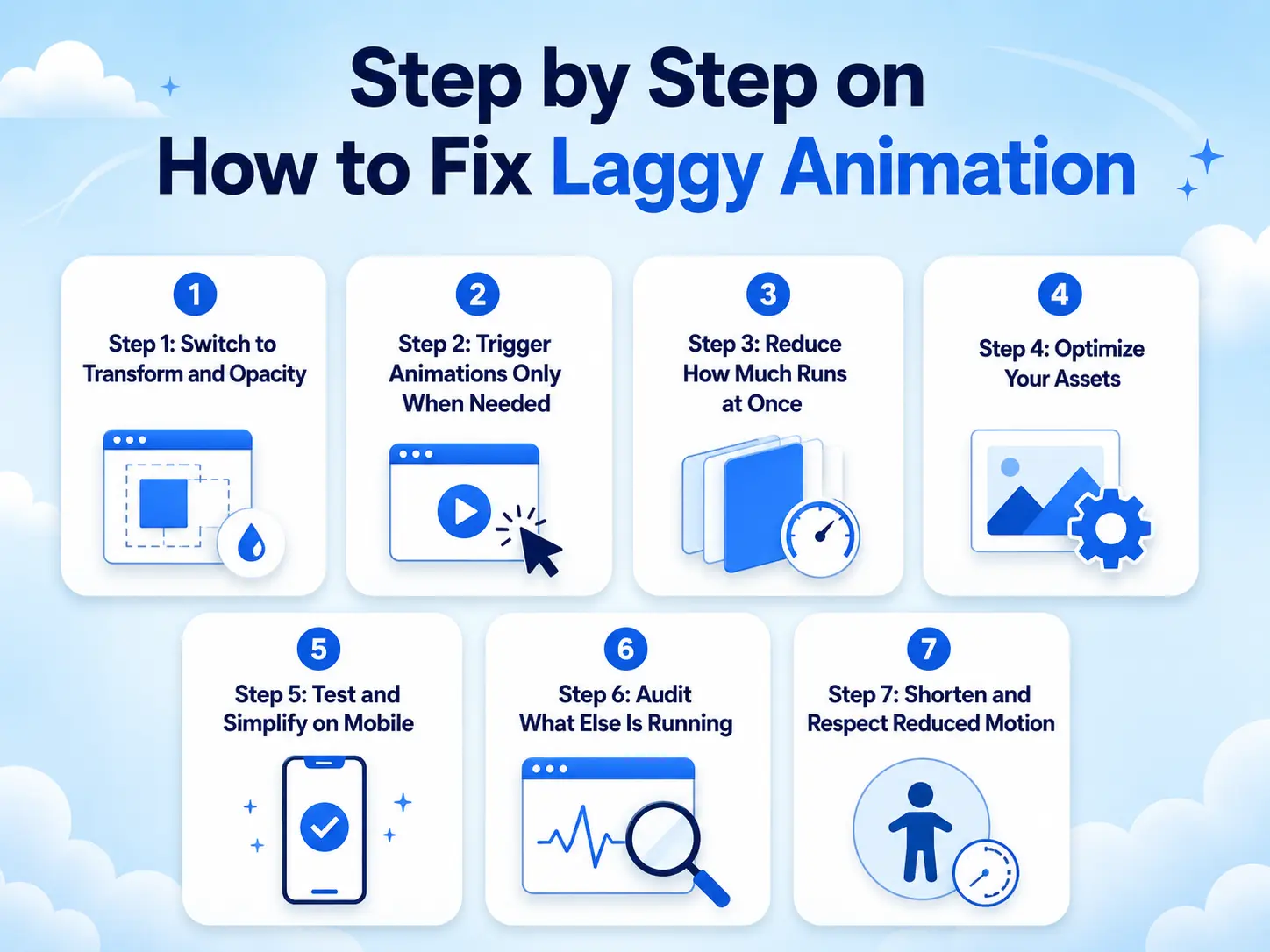
Step by Step on How to Fix Laggy Animation
Here’s a practical order to work through when your animation is lagging.
Step 1: Switch to Transform and Opacity
Before anything else, check what properties you’re animating. If you’re animating size or position with width, height, top, left, or margin, switch to transform (use translate for movement, scale for size). This single change fixes the majority of lag because it moves the work off the layout engine and onto the GPU.
Step 2: Trigger Animations Only When Needed
Don’t animate everything on page load. Set scroll animations to trigger when an element enters the viewport, so the browser only does the work when it’s relevant. This spreads the load out instead of stacking it.
Step 3: Reduce How Much Runs at Once
If a section stutters when many elements animate together, stagger them or reduce the number of simultaneous effects. Fewer things moving per frame means each frame is cheaper to prepare.
Step 4: Optimize Your Assets
Compress images, use efficient formats, and lazy-load anything off-screen (images, video, Lottie). This frees up bandwidth and resources so rendering isn’t competing with downloads.
Step 5: Test and Simplify on Mobile
Check the animation on an actual mid-range phone, not just your desktop. If it lags there, reduce the motion on smaller screens, fewer effects, lighter animation, or disable non-essential motion on mobile entirely.
Step 6: Audit What Else Is Running
If a simple animation still lags, the problem may be elsewhere. Heavy plugins, third-party scripts, and analytics can clog the main thread. Use your browser’s performance tools to see what’s consuming resources during the animation.
Step 7: Shorten and Respect Reduced Motion
Keep animations reasonably fast (often 0.2–0.6 seconds) so they feel snappy and any stutter is less exposed. And respect the reduced-motion setting so users who opt out skip heavy motion entirely.
Examples and Use Cases
Matching real symptoms to fixes makes this concrete.
“My scroll reveals stutter as I scroll.” Usually too many animations firing at once plus layout-property animation. Fix: animate with transform/opacity and trigger each element on view rather than all at load.
“My hero animation jerks on load.” Often a heavy asset (a large hero image or video) loading while the animation plays. Fix: compress and prioritize the hero asset, and let it render before the motion begins.
“It’s smooth on my laptop but choppy on my phone.” A mobile-power problem. Fix: simplify the motion on small screens and reduce simultaneous effects.
“A simple fade is somehow laggy.” Almost always something else clogging the main thread, a heavy plugin or third-party script. Fix: audit what’s running during the animation, not the animation itself.
“My counter animation makes the layout jump.” The number is resizing and pushing content. Fix: reserve the final width so it can’t shift neighbors, which stops both the jump and the associated jank.
The pattern across all of them: identify whether the cause is the animation (wrong properties, too many, too heavy) or the environment (device, other scripts, assets), then apply the matching fix. Most lag traces back to one of these two buckets.
Benefits of Fixing Animation Lag
Getting your motion smooth isn’t just cosmetic, it changes how the whole site is perceived.
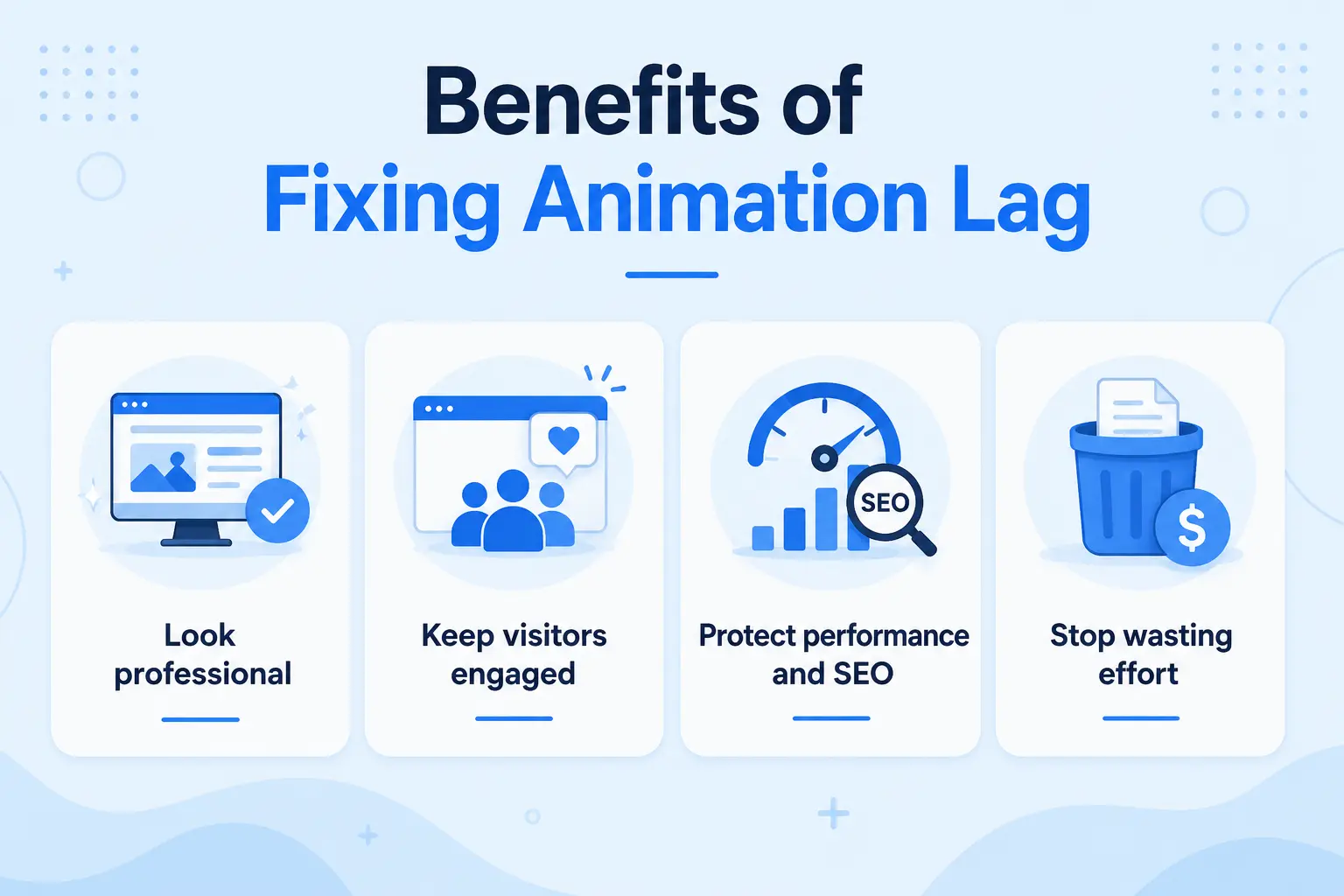
You look professional because smooth 60fps motion reads as premium, while stutter makes a site feel broken regardless of how good the design is. You keep visitors engaged because janky animation is distracting and off-putting, and users associate it with a low-quality site they trust less. You protect performance and SEO because the same fixes that stop lag (transform/opacity, no layout thrash, lighter load) also protect your Core Web Vitals. And you stop wasting effort, because the animation you spent time building actually delivers the premium feel you intended instead of undermining it.
For designers and agencies, smooth motion is the difference between animation being an asset and a liability. For site owners, it’s the difference between motion that impresses visitors and motion that quietly costs you their trust.
Common Mistakes to Avoid
These errors either cause lag or make diagnosing it harder.
Animating layout properties. The root cause of most lag. Always prefer transform and opacity over animating size and position directly.
Testing only on a powerful device. “It’s smooth for me” hides mobile lag. Always test on a mid-range phone.
Animating everything at once. Stacking many simultaneous effects overloads each frame. Stagger and trigger on view.
Loading heavy assets eagerly. Large uncompressed media competing with rendering causes stutter. Compress and lazy-load.
Blaming the animation when it’s the environment. Sometimes a simple effect lags because of unrelated heavy scripts. Diagnose before you delete.
Making animations too long. Slow motion both feels laggy and exposes any dropped frames. Keep effects snappy.
Ignoring reduced-motion. Not respecting it means users who opt out still get the heavy motion, and its performance cost.
How MotionKit Helps
A lot of animation lag comes from technique that’s hard to get right by hand, which is exactly where a well-built tool helps. MotionKit brings GSAP-powered animation to WordPress through visual controls, and because it’s built on GSAP, it’s designed around the practices that keep motion smooth.
In practice, MotionKit’s effects lean on the compositor-friendly properties (transform and opacity) and efficient, viewport-based triggering that prevent the most common causes of lag, rather than the layout-thrashing patterns that produce it. You build scroll reveals, split-text headings, and pinned sections with settings, and the underlying engine handles the performance foundation that would otherwise require careful coding to get right. That means fewer of the “why is this stuttering?” problems that come from hand-built animation.
Note
MotionKit can’t fix lag that comes from outside the animation, a heavy unrelated plugin, an underpowered host, or a giant uncompressed image will still cause problems no tool controls. But for the animation itself, it’s built to stay smooth by default, so you spend less time debugging jank and more time building motion that actually looks the way you intended.
Conclusion
Laggy animation almost always traces back to one core problem: the browser is being asked to do expensive work on every frame and can’t keep up. The most common version is animating layout properties instead of transform and opacity, and switching those alone fixes the majority of cases. The rest comes down to not overloading the page, not loading heavy assets during motion, keeping other scripts in check, and respecting the limits of mobile devices.
The important mindset shift is that smooth animation isn’t luck, it’s technique. Stutter isn’t a reason to abandon motion; it’s a signal that a specific, fixable thing is wrong. Diagnose whether the cause is the animation itself or its environment, apply the matching fix, and you get the premium 60fps feel you were after.
FAQs
The most common reason is animating layout properties like width, height, top, or left, which force the browser to recalculate layout every frame and cause stutter. Other causes include too many animations at once, heavy assets loading during motion, main-thread overload from other scripts, and underpowered mobile devices.
Animate transform and opacity instead of layout properties, since they’re GPU-accelerated. Trigger animations only when elements enter the viewport, limit how many run at once, compress and lazy-load assets, and simplify motion on mobile. These changes fix the large majority of lag.
Phones have far less processing and GPU power than a laptop, so an animation that’s fine on desktop can overwhelm a mid-range phone. Simplify the motion on smaller screens, reduce simultaneous effects, use lighter animation, or disable non-essential motion on mobile.
No, GSAP is a highly optimized library designed for smooth performance. Lag usually comes from misusing animation (animating the wrong properties, overloading the page) rather than from GSAP itself. Used with best practices, GSAP produces smooth 60fps motion.
If a simple effect lags, the cause is often outside the animation, heavy plugins, third-party scripts, or analytics clogging the browser’s main thread so there’s no room to render smoothly. Audit what else is running during the animation before assuming the effect is the problem.
Aim for 60 frames per second (60fps), which is what browsers target and what “smooth” means to users. That gives the browser about 16 milliseconds per frame. When work per frame exceeds that budget, frames drop and you see stutter.